

We use a so called wysiwyg-editor working like MS-Word but for web pages. The most functions are the same as in word but there are some special functions for web pages: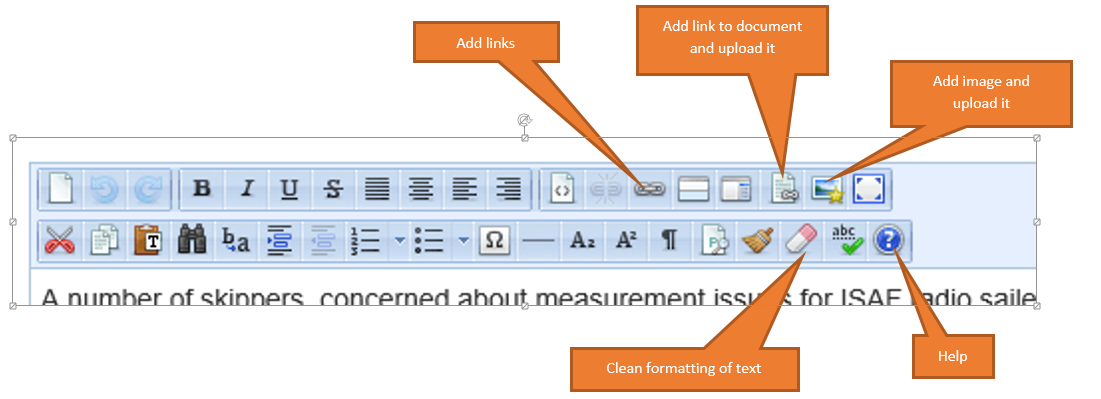
- Image handling
- link to one document from the documents library
- link to other pages or documents
- Clean formatting (e.g. from word)
There is an integrated help function  that has good informations on the most other things like formatting the text and so on. Most functions can also reached on right mouse button click at the position where you want to change something.
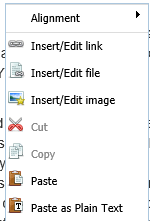
Image handling
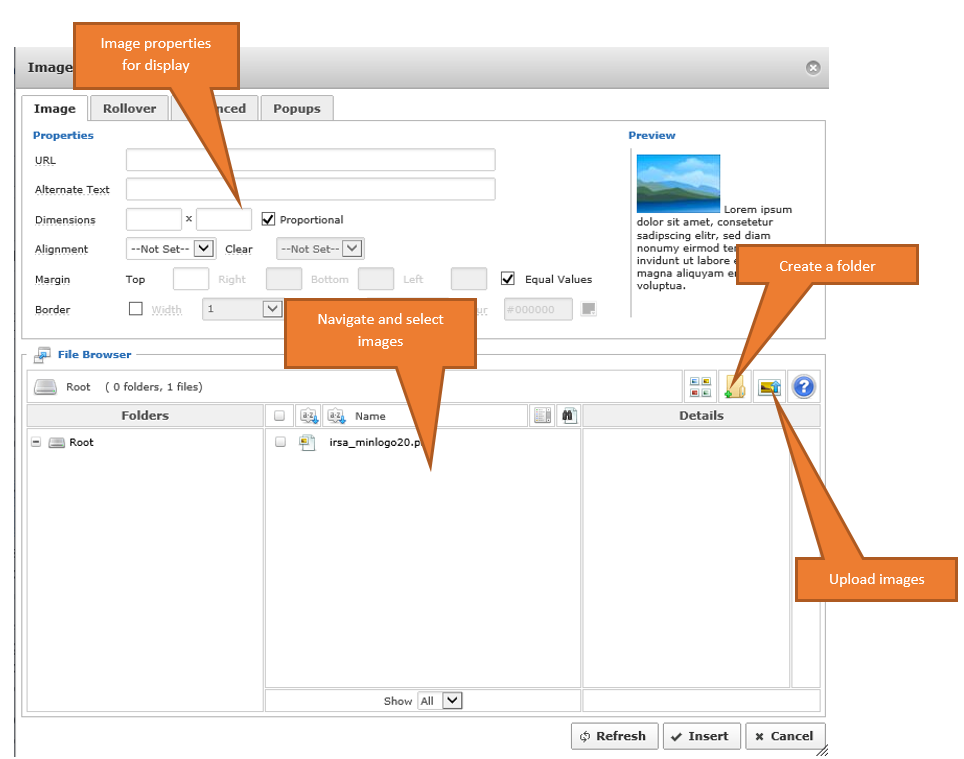
All images that you want to show on an article page have to be uploaded. The editor has some special functions for this to make it as easy as possible. To change or add an image click the following image  when the cursor is on the position where you want to add an image or when the image is selected that you want to change.
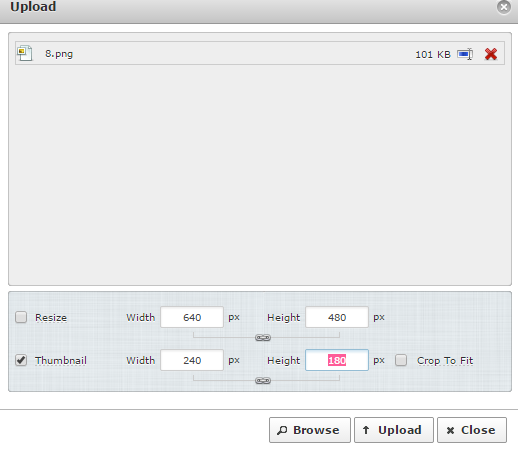
For uploading images you have the following dialog (you can also upload more than one file) It is possible to resize images and to generate a thumbnail (small image for preview). The upload dialog closes when the upload is finished,
If you want to use the pop up box for displaying the full siez image than you have to generate the thumbnail image. After uploading click on popup and select the image. System asks automatically if thumbnail should be the image placeholder.
Link to documents from the document library
If you want to add a link to one of the documents from the document library (e.g. Class rules) you will find the necessary button on the bottom of the editor. place the cursor where you want to add the link and click on  . On the next dialog select a file from the list add a descriptive text and click on insert code.
Link to documents
If you want to add a document it is a similar process as for images. Click on the following icon  . The following dialog shows options to upload and select files. (see image dialog)